
Skip to content

Use case

AI Tools for YouTubers Thumbnails, Shorts & Voice

The work around a video often takes longer than the video: the thumbnail, the Shorts cut, the captions, the voiceover and the version for another audience. FunAI has a Tool for each, plus video and voice models for creators who never show their face.

Start on the free Starter plan. Every model page lists its price per run.
AI Tools for YouTubers - FunAI
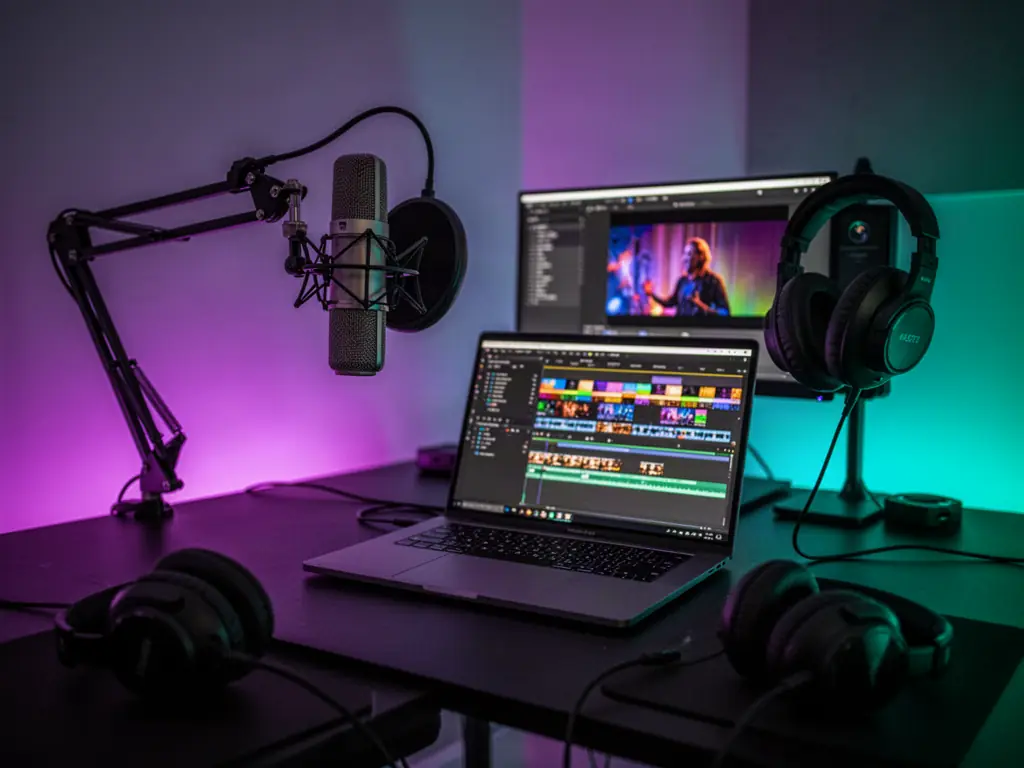
A creator desk with a microphone and video timeline, made on FunAI

One Upload, Every Format

Make the thumbnail, cut the Shorts, caption and voice the video, and reach a second audience with a dub, all from the same source video.

Open the Thumbnail Generator

Thumbnails that read small

Generate from a prompt or restyle a frame from your video, with a clear face, one idea and a few large words.

Shorts from long videos

Reframe a horizontal segment to vertical with the subject kept in frame, then add burned-in subtitles for muted viewing.

Voice without a microphone

Narrate a script with text to speech, clone your own voice for consistency, or dub an existing video into another language.

Tools for YouTube creators

The thumbnail and faceless-video pages go deeper on those jobs; the Tools below handle Shorts, captions, voice and dubbing.

Browse all Tools
Two podcast hosts at microphones, made on FunAI

AI Tools for YouTubers explained

A YouTube upload is really a bundle: a 16:9 video, a thumbnail that earns the click, a vertical Short or three to pull in new viewers, captions for people watching on mute, and ideally a voice track in another language. Doing each piece by hand in separate apps is where a creator's week disappears.

FunAI covers the bundle with focused Tools. YouTube Thumbnail Generator makes a thumbnail from a prompt or a frame of your video, with the Youtube Thumbnails model behind it. AI Reframe changes a video's aspect ratio while keeping the subject in frame, which turns a horizontal segment into a vertical Short. Auto Subtitles transcribes and burns in captions, Text to Speech reads a script with ElevenLabs, MiniMax or Kokoro voices, and AI Dubbing re-voices the speech in another language.

Faceless channels can go further: write the script, voice it with text to speech, generate B-roll with video models such as Kling, Veo, Seedance or Hailuo, and assemble the episode in the browser video editor. Keep your own voice and judgement in the script; viewers come back for a point of view, not for the tools.

Why YouTubers use AI around the edit

  • Several thumbnail options to test instead of one
  • Vertical Shorts from footage you already shot
  • Captions for viewers watching on mute
  • A consistent narration voice, even on days you cannot record
  • A dubbed version for viewers in another language
  • Video models for B-roll and faceless episodes

A creator's week in FunAI

Feature visual preview 1
Feature visual preview 2
Feature visual preview 3
Feature visual preview 4
01

Voice or record the video

Record as usual, or write a script and voice it with Text to Speech. Generate B-roll with a video model where you need cutaways.

02

Make the thumbnail

Open YouTube Thumbnail Generator, start from a frame or a prompt, and make two or three versions to test.

03

Cut the Shorts

Pick the strongest 30 to 60 seconds, reframe them to vertical with AI Reframe and add captions with Auto Subtitles.

04

Reach another audience

Run AI Dubbing on the finished video for a second-language version, or caption it for viewers watching without sound.

No public creations to show yet.

Everything you need to know